Exnova Account Registration: Steps and Required Documents

This walkthrough focuses on the practical onboarding steps to complete registration and unlock trading access, including step-by-step form completion, which documents to attach, typical verification timeframes, and common setup errors to avoid. It also highlights basic account security actions—strong passwords and two-factor options—so your account remains protected during the verification process and after funding. Follow these recommendations to shorten approval times and get ready to deposit and start trading once your account is active.

How to Register an Exnova Account with an Email
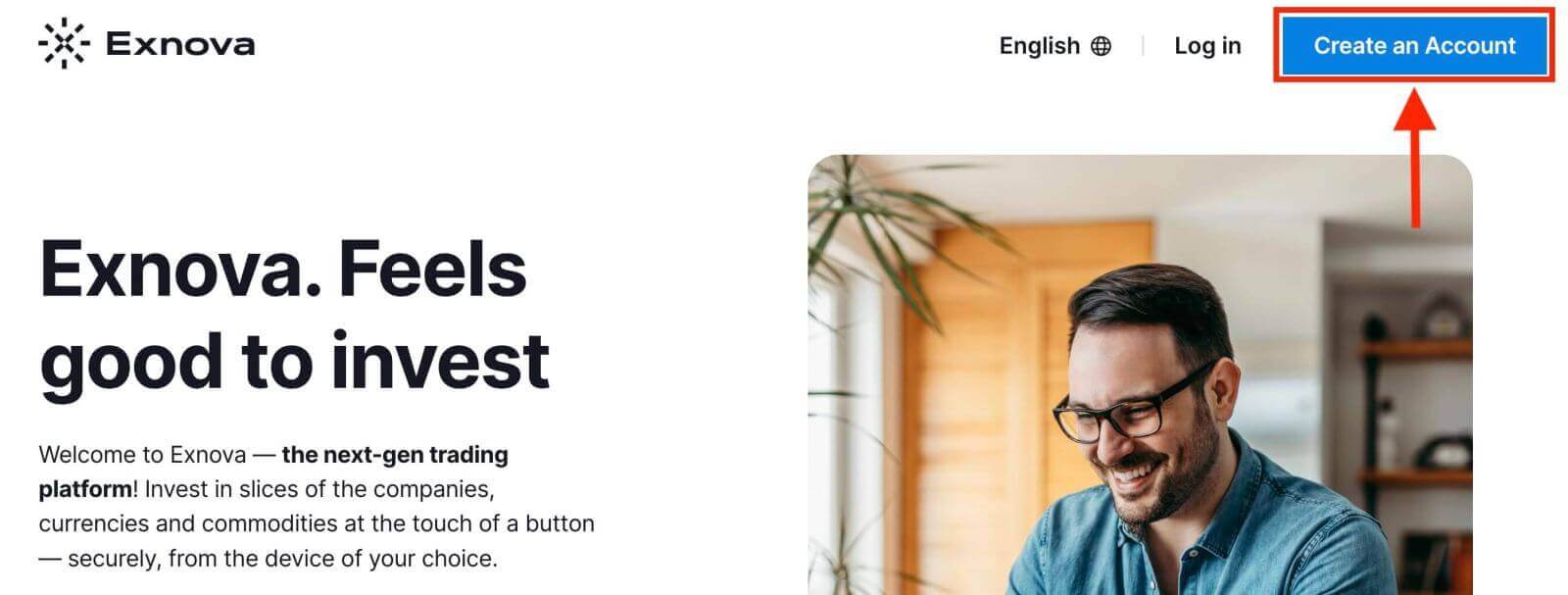
Step 1: Access the Exnova WebsiteBegin by opening your preferred web browser and navigating to the Exnova website.
Step 2: Locate the Registration Page
On the Exnova homepage, click the "Create an Account" button. This will direct you to the registration page, where you can initiate the account creation process.
Step 3: Provide Your Personal Information
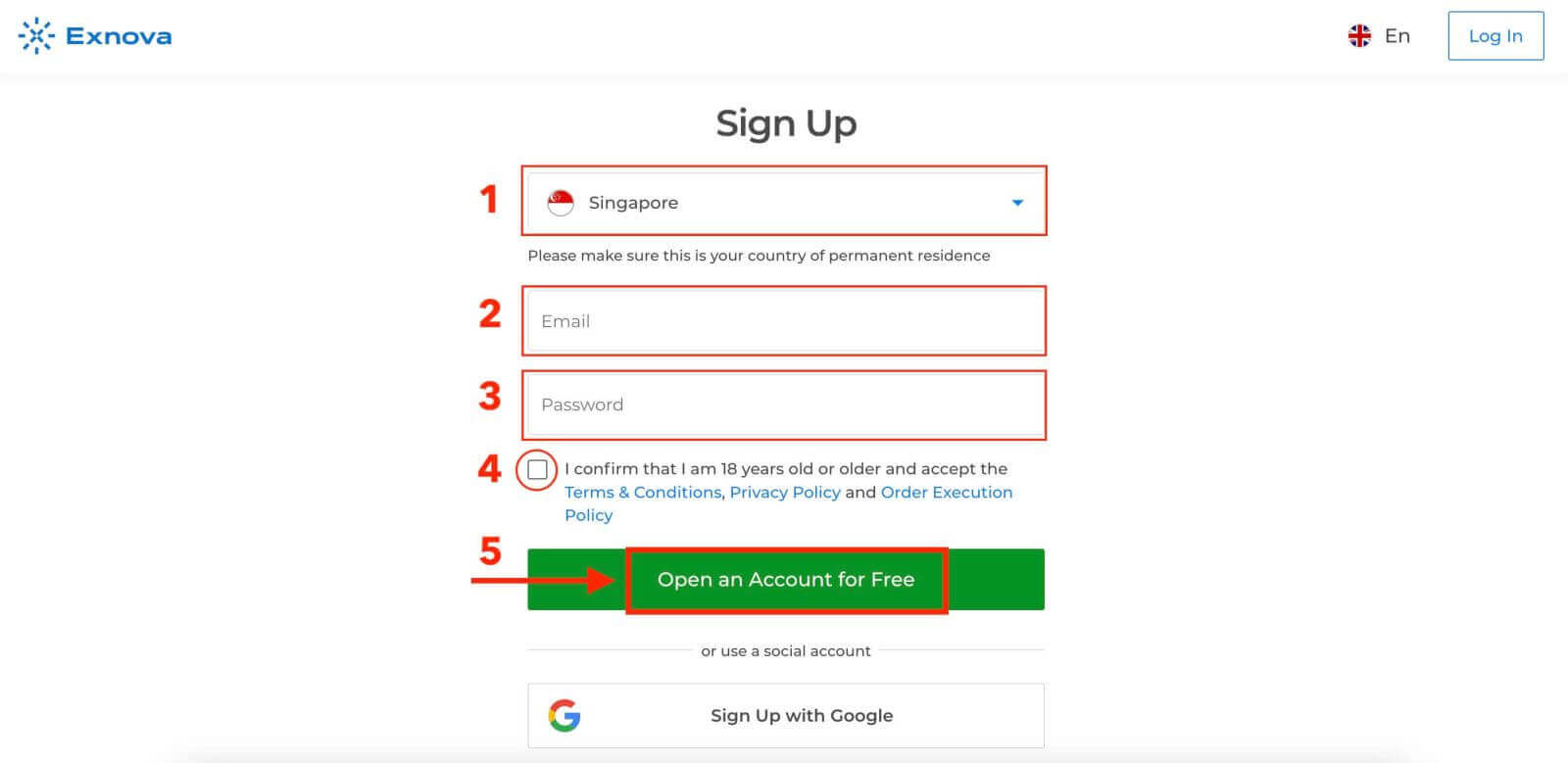
The registration page will require you to provide some personal information to create your Exnova account. This typically includes:
- Country: Choose your country of permanent residence.
- Email Address: Provide a valid email address that you have access to. This will be used for communication and account verification.
- Password: Choose a strong password that combines letters, numbers, and symbols to ensure account security.
- Read and agree to the Privacy Policy of Exnova.
- Click "Open an Account for Free".
Step 4: Verify Your Email
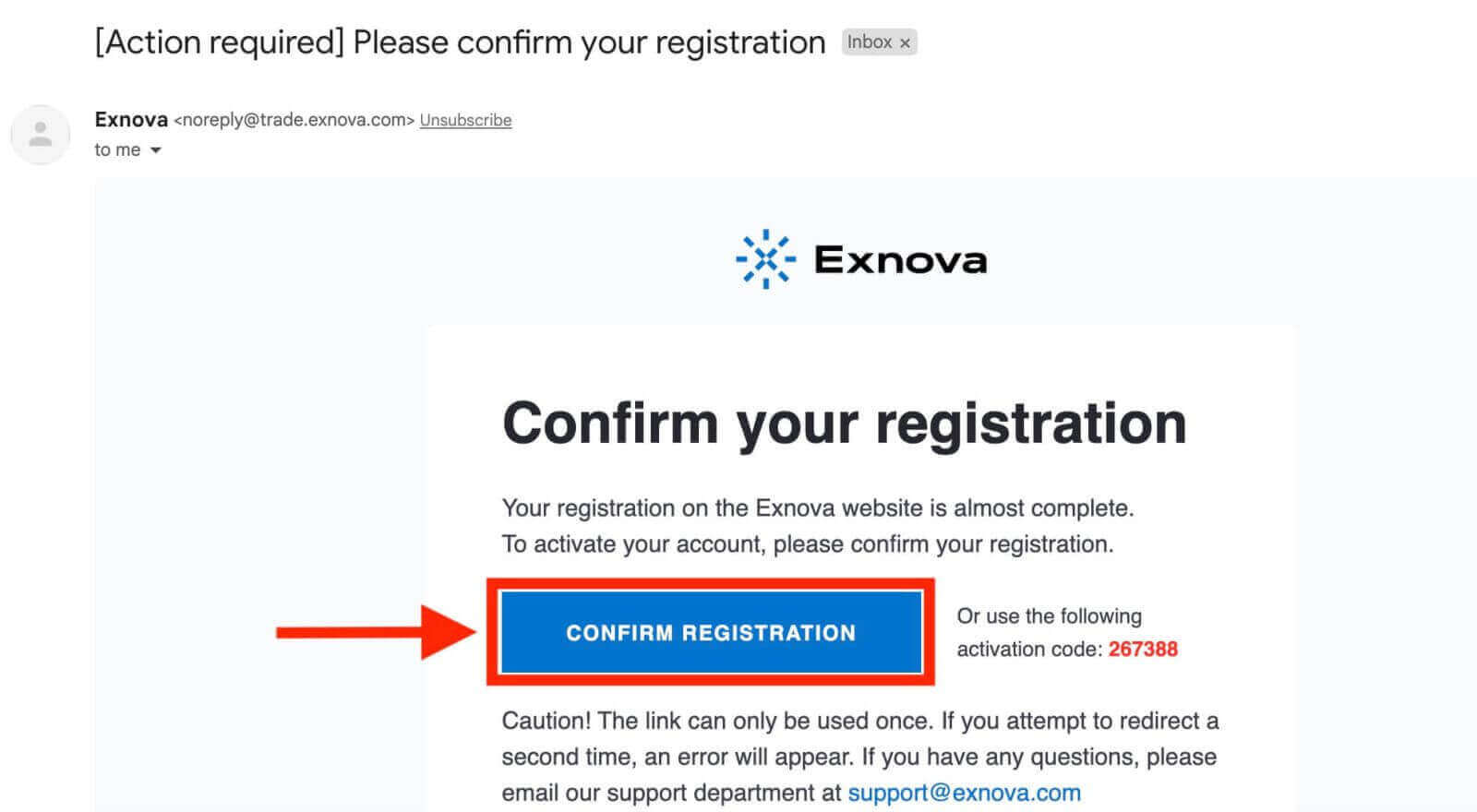
After filling in your personal information, Exnova will send a verification email to the address you provided. Check your inbox and click on the verification link within the email. This step confirms the authenticity of your email address and ensures that you have access to it.
Congratulations! You’ve successfully registered an Exnova account. You have $10,000 in Demo Account. Exnova provides a demo account to its users which is a risk-free environment to practice trading and acquaint oneself with the platform’s features. These demo accounts are ideal for both beginners and seasoned traders as they serve as a powerful tool to enhance your trading skills before venturing into real fund trading.
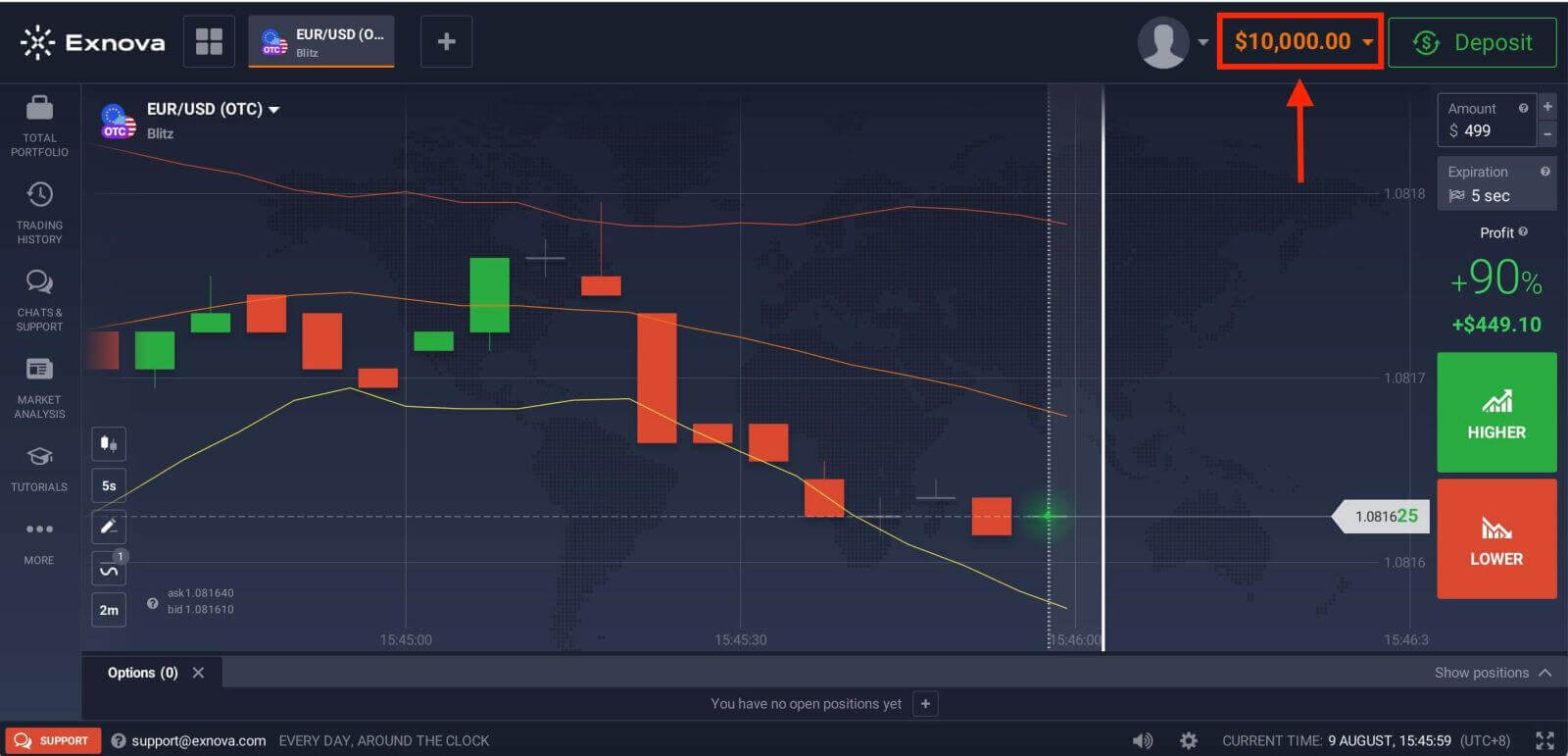
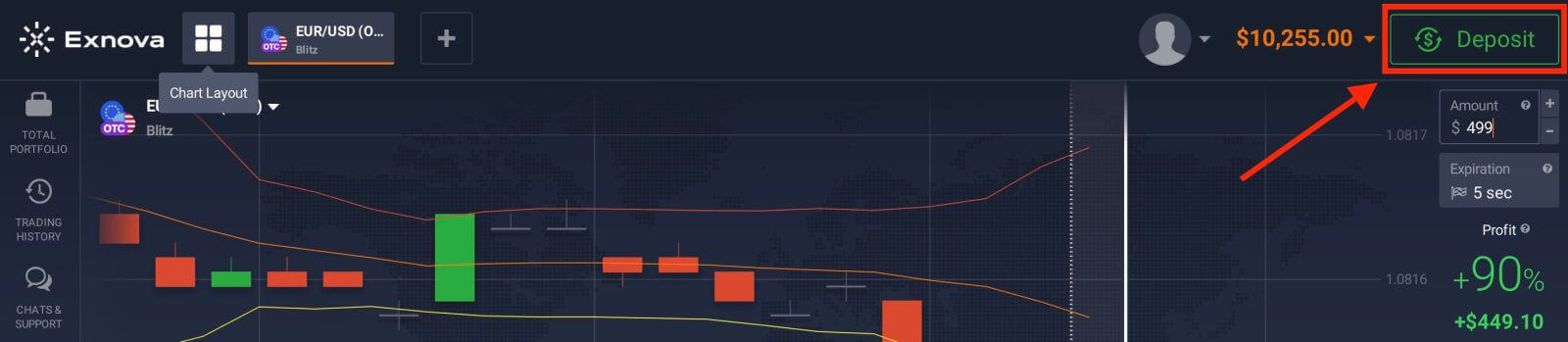
Once you gain confidence in your trading abilities, you can easily switch to a real trading account by clicking the “Deposit” option. This is an exciting and rewarding step in your trading journey as you can deposit funds on Exnova and start trading with real money.
How to Register an Exnova Account with a Google Account
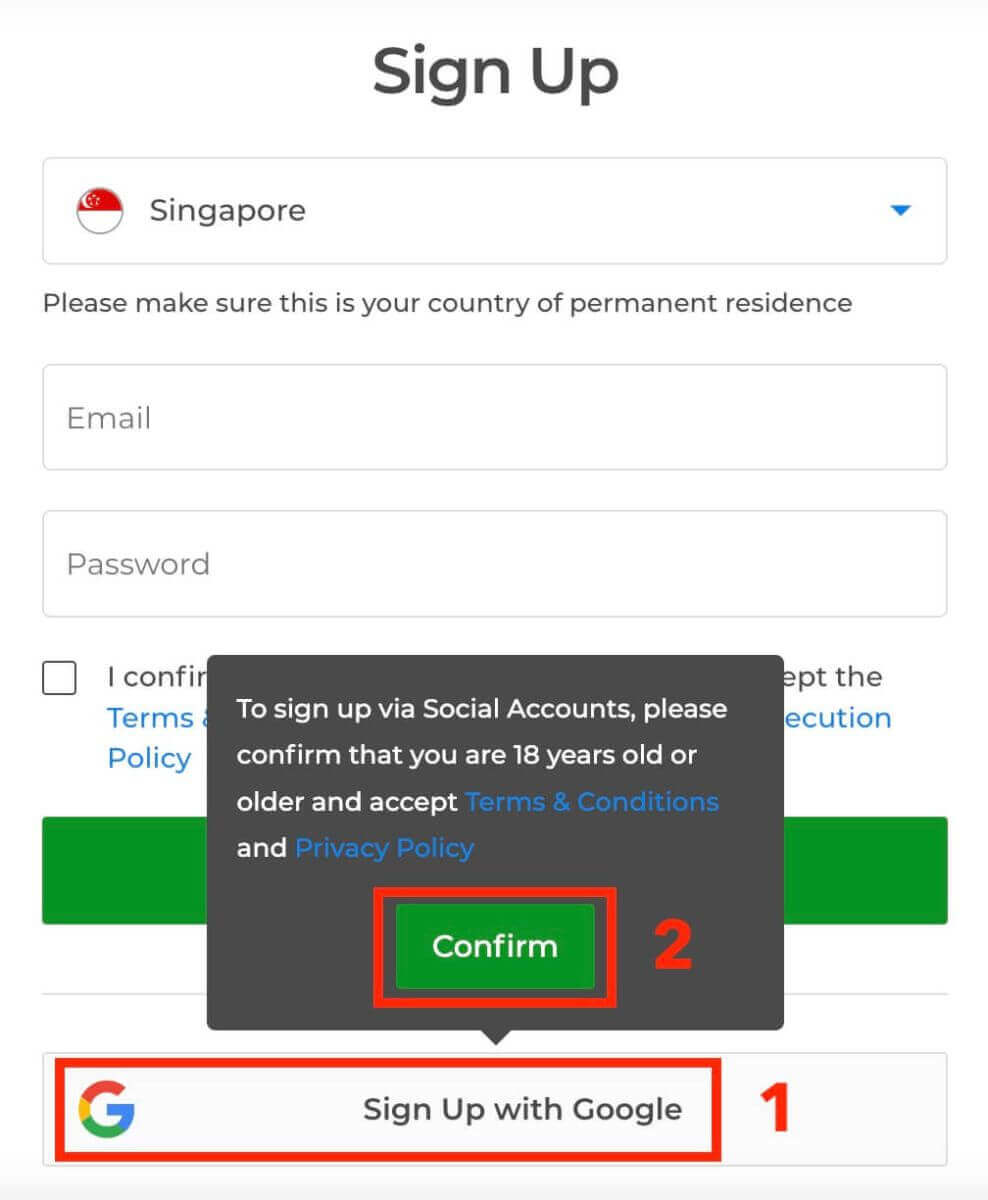
1. Exnova is also available for registration using a Google account. To register, you need to authorize your Google account by clicking on the corresponding button in the registration form. Then, it will ask you that you are 18 years old or older and accept Terms Conditions, Privacy Policy and Order Execution Policy, click "Confirm".
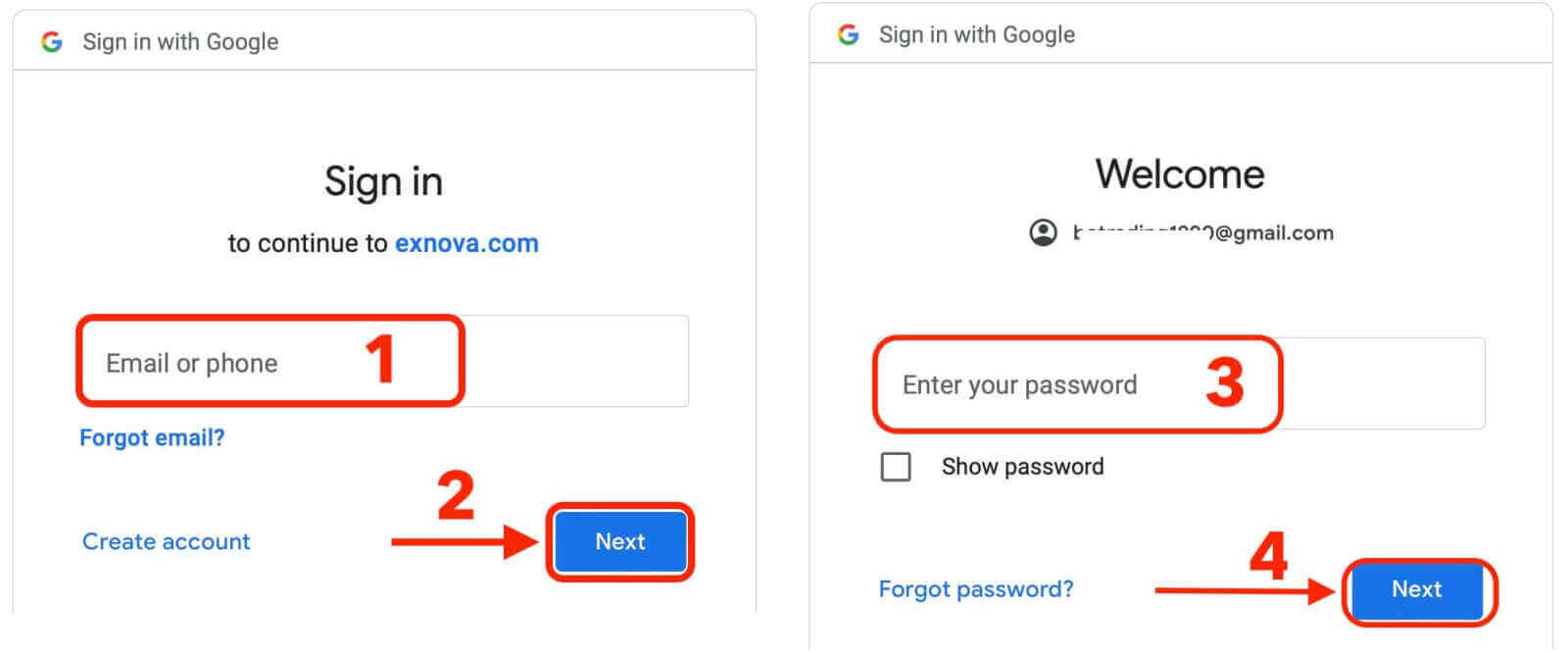
2. You will be redirected to a Google sign-in page where you can enter your existing Google account credentials and click “Next”.
Congratulations! You have successfully registered with a Google account on Exnova. You will then be taken to your Exnova trading.
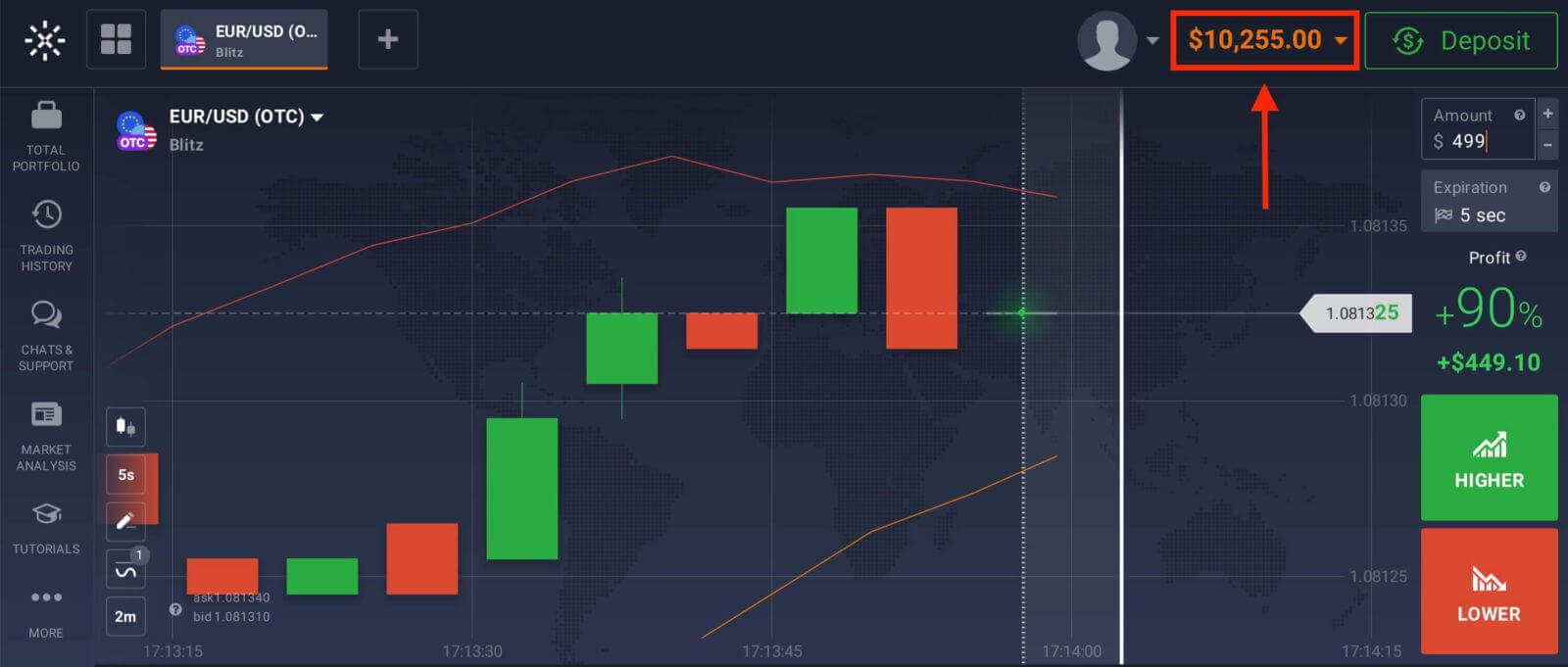
You can now enjoy the benefits of trading on one of the most advanced and user-friendly platforms in the market.
Register Account on Exnova App Android
Exnova app Android is a user-friendly and powerful trading platform that allows you to trade anytime and anywhere. We will show you how to download and register an account on Exnova app Android, which is one of the most convenient ways to trade on the go.
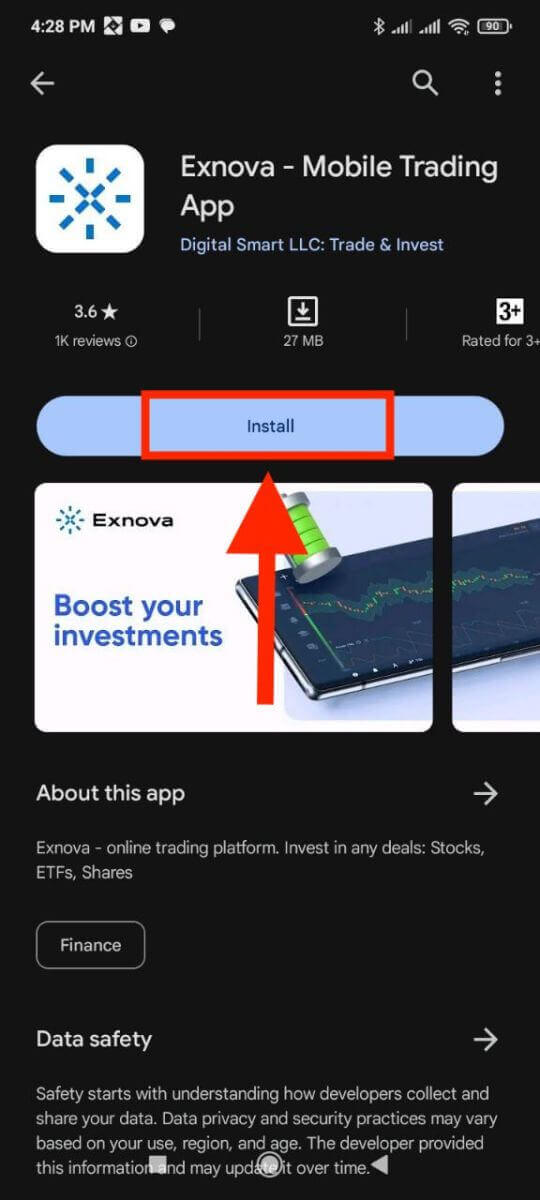
Step 1: Download the app
To download the Exnova app Android, you can go to the Google Play Store and search for "Exnova – Mobile Trading App" or tap here. Then, tap on the "Install" button situated prominently on the app’s page.
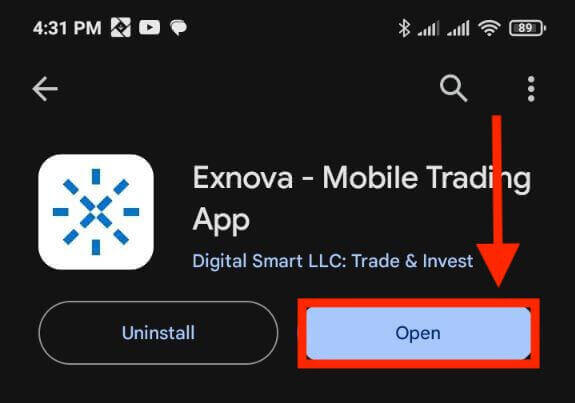
Step 2: Open the app
Once the installation is complete, the "Install" button will transform into an "Open" button. Tap on "Open" to launch the Exnova app for the first time.
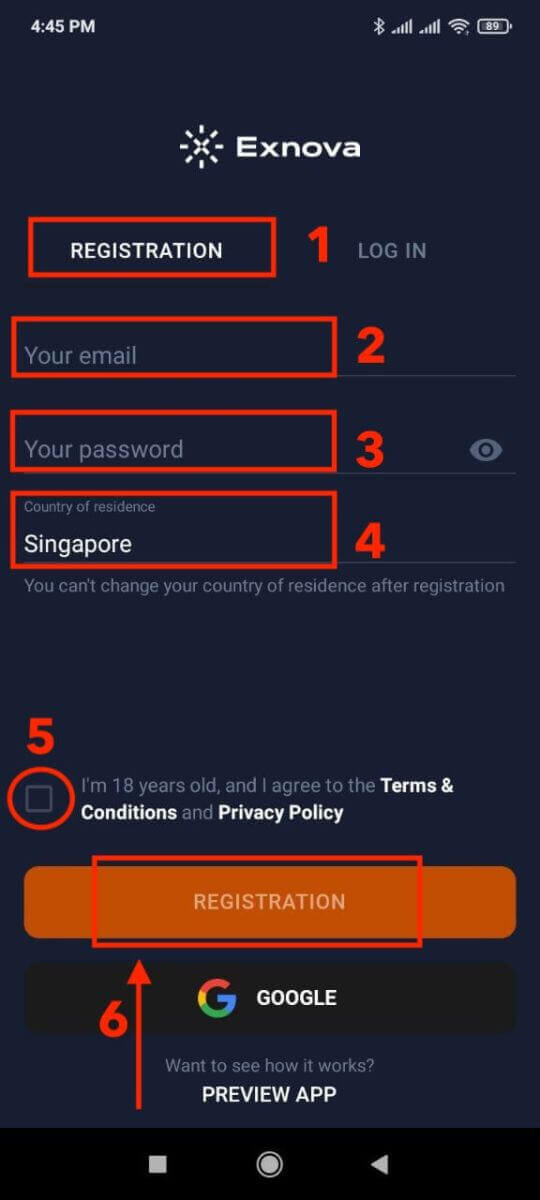
Step 3: Sign up
You will see a registration form where you can enter your email, password and select your country. You also need to agree to the terms and conditions and privacy policy by checking the box. Alternatively, you can sign up with your Google account by tapping on the corresponding buttons.
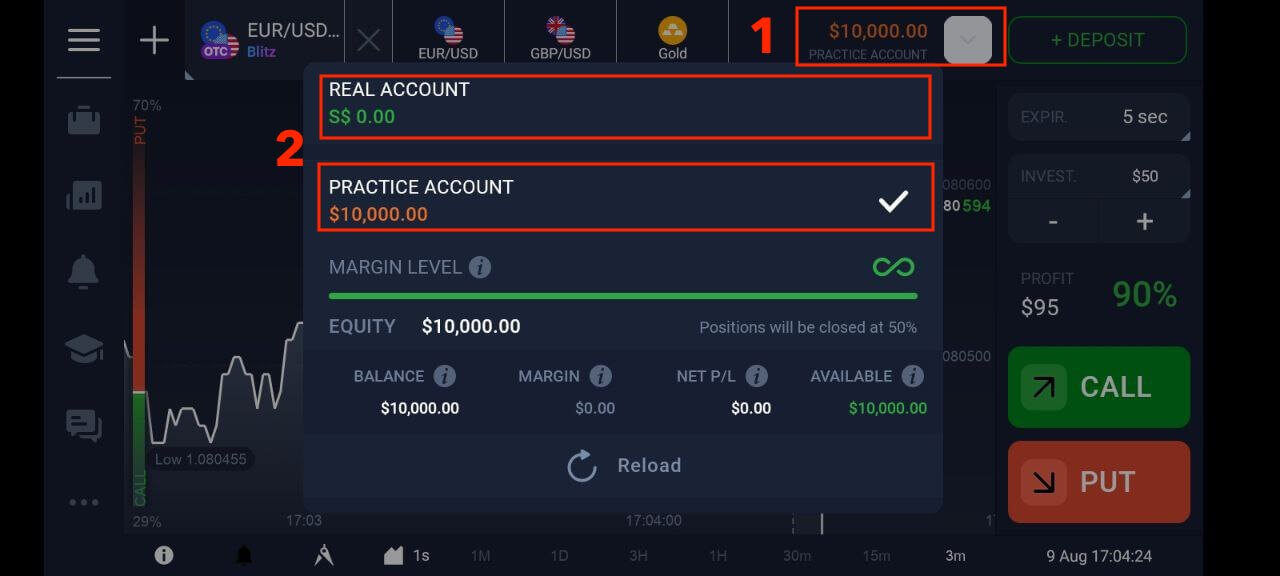
Congratulations, you have successfully created your Exnova account. You can start exploring the features of the Exnova app Android. You can switch between a free demo account and a real account by tapping on the balance icon at the top right corner. You can also choose from over 250 assets to trade, view charts and indicators, set alerts, and manage your trades.
Register Exnova Account on Mobile Web Version
Step 1: Begin by unlocking your mobile device and launching your preferred mobile browser. Whether it’s Chrome, Safari, Firefox, or another browser.Step 2: Access the Exnova mobile website. This will direct you to the Exnova mobile website, where you can initiate the account registration process.
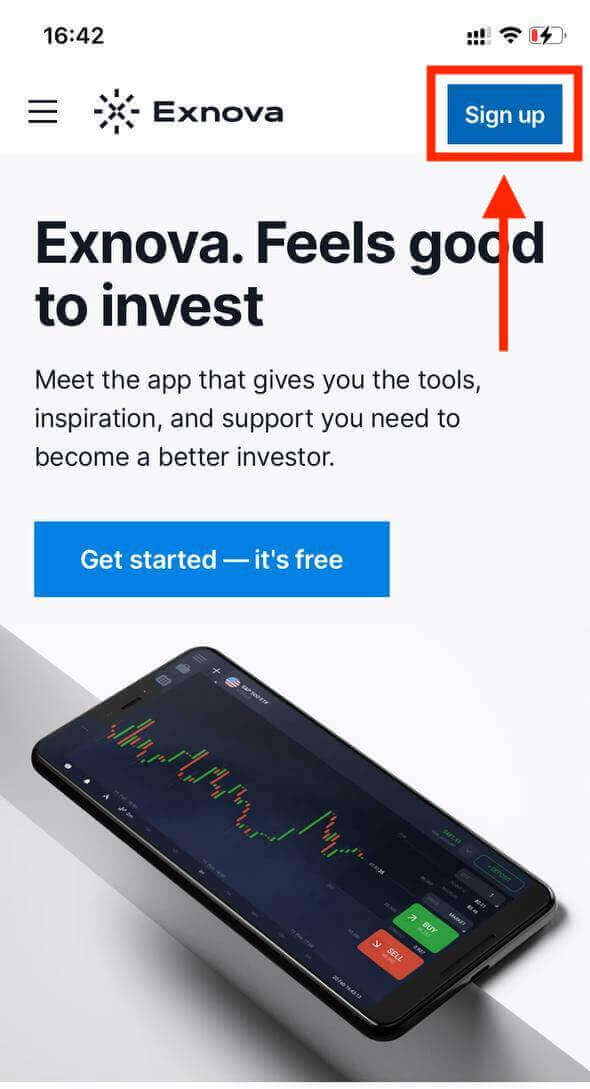
Step 3: Click "Sign up". This will lead you to the registration page, where you can input your information.
Step 4: Providing Your Personal Details. On the registration page, you’ll need to provide essential personal details to create your Exnova account. These typically include:
- Country: Choose your country of permanent residence.
- Email Address: Input a valid email address that you have access to.
- Password: Choose a strong password that combines letters, numbers, and special characters for enhanced security.
- Read and agree to the Privacy Policy of Exnova.
- Click the blue "Create an Account" button.
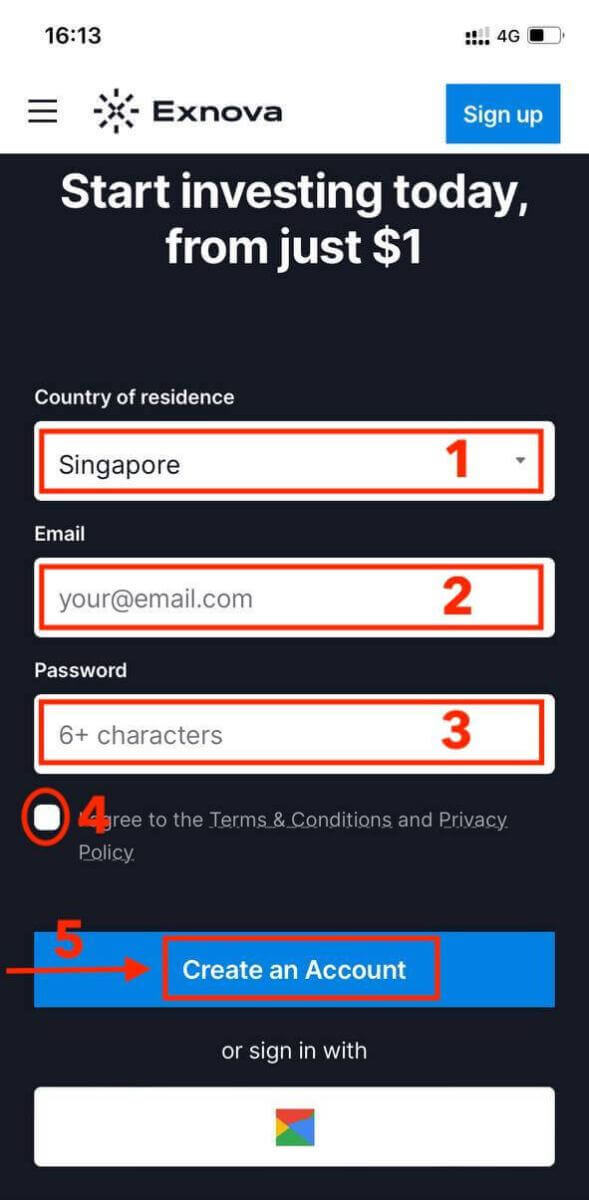
Congratulations! You’ve now registered an Exnova account through the mobile website. Take some time to explore the platform’s functionalities, engage with other users, and maximize your online experience.
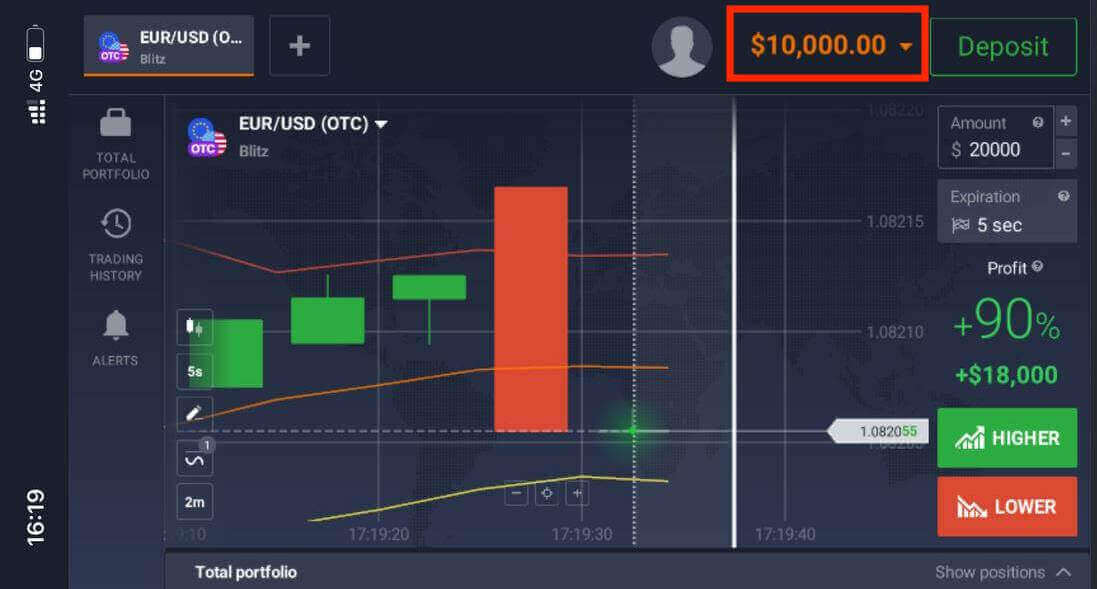
The mobile web version of the trading platform is exactly the same as the regular web version of it. Consequently, there won’t be any problems with trading and transferring funds.
Frequently Asked Questions (FAQ)
How can I secure my account?
To secure your account, use two-step authentication. Each time you log in to the platform, the system will prompt you to enter a special code sent to your email address. You can activate this in Settings.
How do I switch between a practice account and a real account?
To switch between accounts, click on your balance in the upper right corner. Make sure that you are in the trading room. The panel that opens displays your accounts: your real account and your practice account. Click on the account to make it active. Now you can use it to trade.
How do I top up my practice account?
You can always top up your practice account for free if your balance drops below $10,000. You must first select this account.
How much money can I make on the practice account?
You cannot profit from the trades you make on a practice account. On a practice account, you receive virtual funds and make virtual trades. It is designed for training purposes only. To trade with real money, you need to deposit funds into a real account.
Conclusion: Exnova Account Registration - A Quick and Easy Tutorial
Registering an Exnova account is a smart decision for anyone who wants to invest in the trading market. Exnova is a reliable and secure platform that offers a variety of features and benefits to its users.Exnova ensures that the account registration journey is both seamless and secure. By following the outlined steps, you can establish your presence within this dynamic online platform, whether through its website or mobile version. With Exnova Trading, you can start your trading journey with confidence and ease. Don’t miss this opportunity and sign up today!