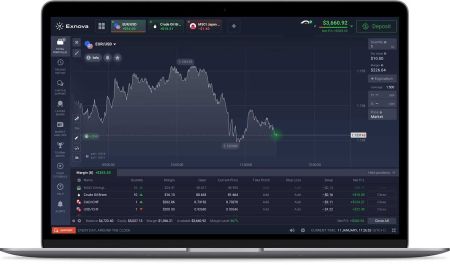
Download and Install Exnova Application on Laptop/PC (Windows, macOS)
Writen By

Online Trading Platform Researcher and Guide Writer
Researches broker platforms and trading account Systems.
If you want a native desktop client for faster market access, installing Exnova on a laptop or PC removes browser limits, provides native notifications and can improve trade execution responsiveness. Before downloading, confirm your operating system version, available disk space and that you have administrative rights—macOS Gatekeeper or Windows SmartScreen may block unsigned installers until you permit them. Use the official Exnova download page and avoid third-party packages to reduce the risk of corrupted files or malicious software; a clean, verified install also helps ensure your account verification and funding features work correctly once you sign in.
The steps below show how to pick the correct installer for Windows and macOS, run setup with proper permissions, and complete initial app configuration including two-factor setup and auto-updates. You’ll also find guidance on checking digital signatures, adjusting firewall or VPN settings that can interfere with installation, and quick fixes for common errors like incomplete downloads or permission denials so your desktop client connects securely and reliably.
The steps below show how to pick the correct installer for Windows and macOS, run setup with proper permissions, and complete initial app configuration including two-factor setup and auto-updates. You’ll also find guidance on checking digital signatures, adjusting firewall or VPN settings that can interfere with installation, and quick fixes for common errors like incomplete downloads or permission denials so your desktop client connects securely and reliably.
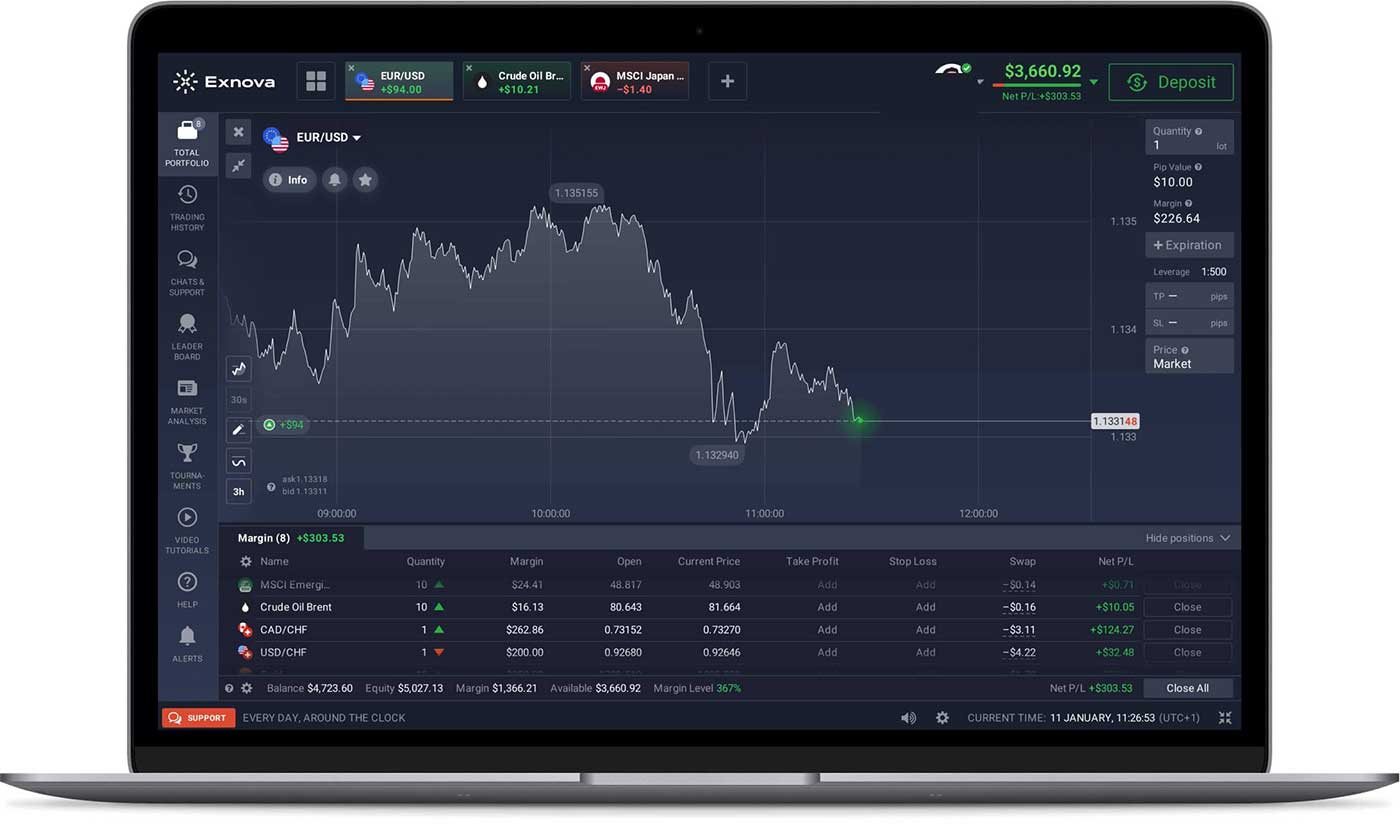
How to Download and Install Exnova App on macOS
Before you proceed with the download and installation process, ensure that your laptop/PC meets the following system requirements:
- Operating system:
- RAM:
- Video card:
- Hard disk space:
Download the official Exnova app here on your Laptop/PC.
Get Exnova App for macOS
Your Exnova installer will start downloading automatically in a few seconds. If this does not happen, restart the download.
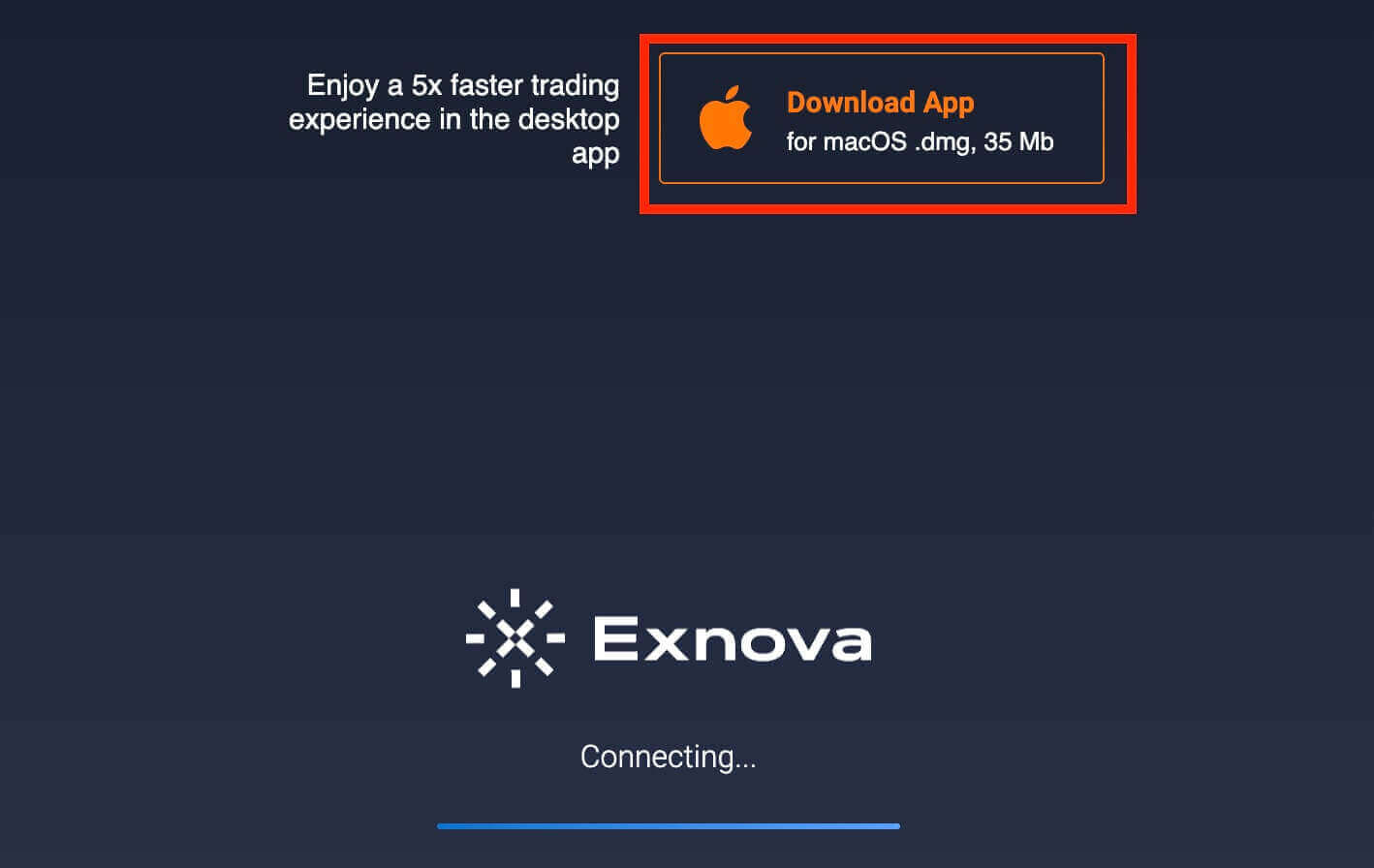
After downloading successfully, follow these steps to install it on your Laptop/PC:
1. Open the Exnova.dmg file on your computer (usually in your "Downloads" folder).
2. Open the downloaded file. Put the Exnova icon into the Applications folder.
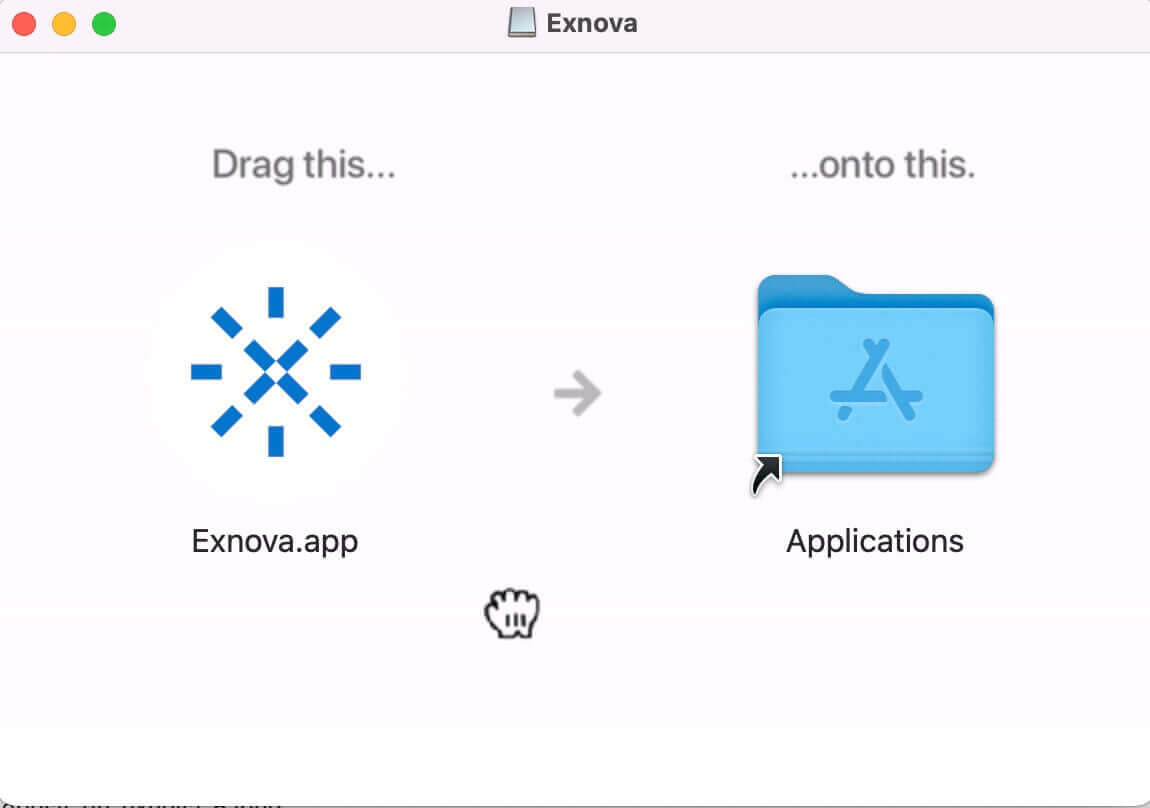
3. Open the downloaded file.

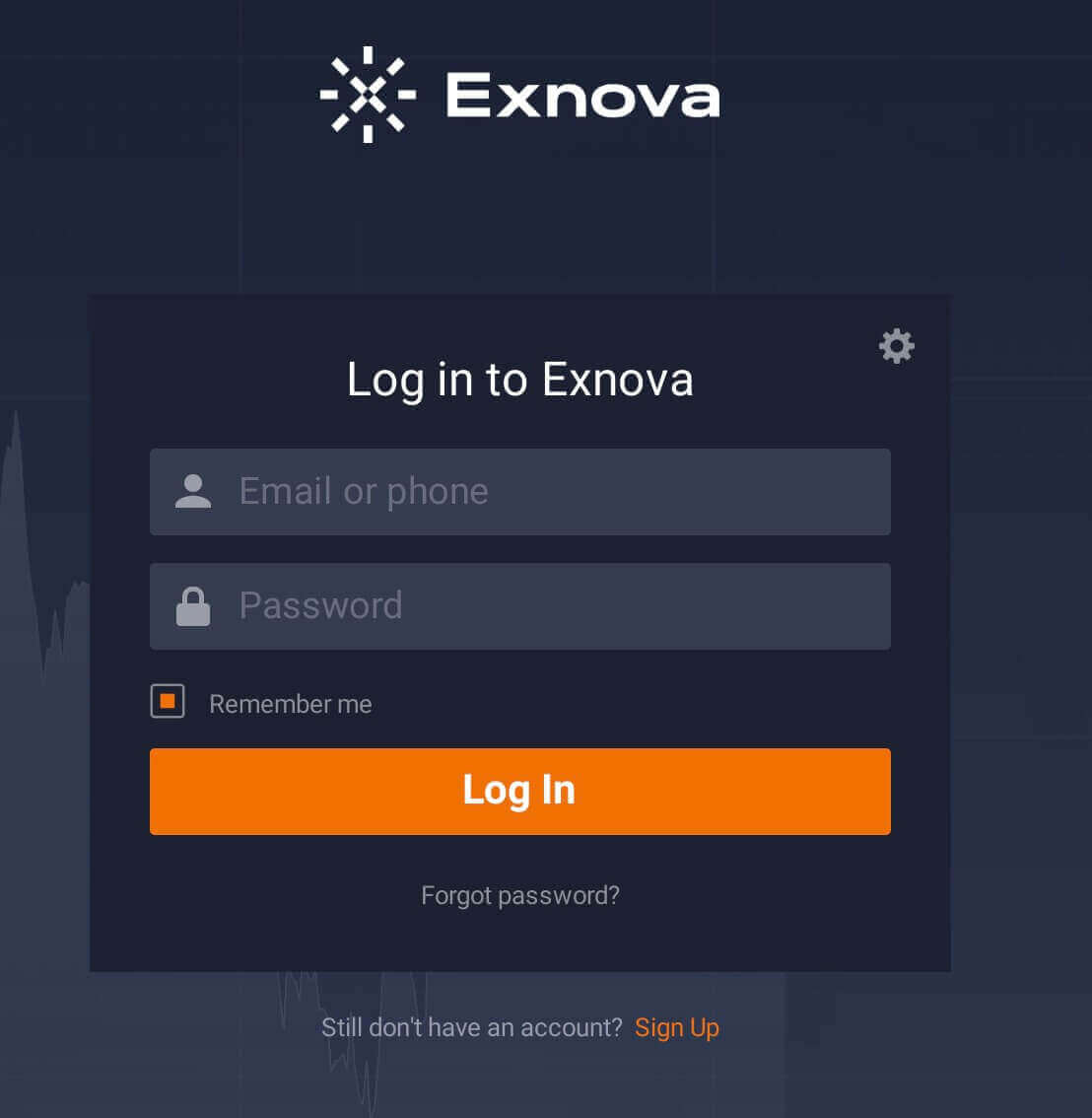
4. Log in to the client and start trading. In case you can’t remember your e-mail or password, use the password recovery option or change the password in your profile.
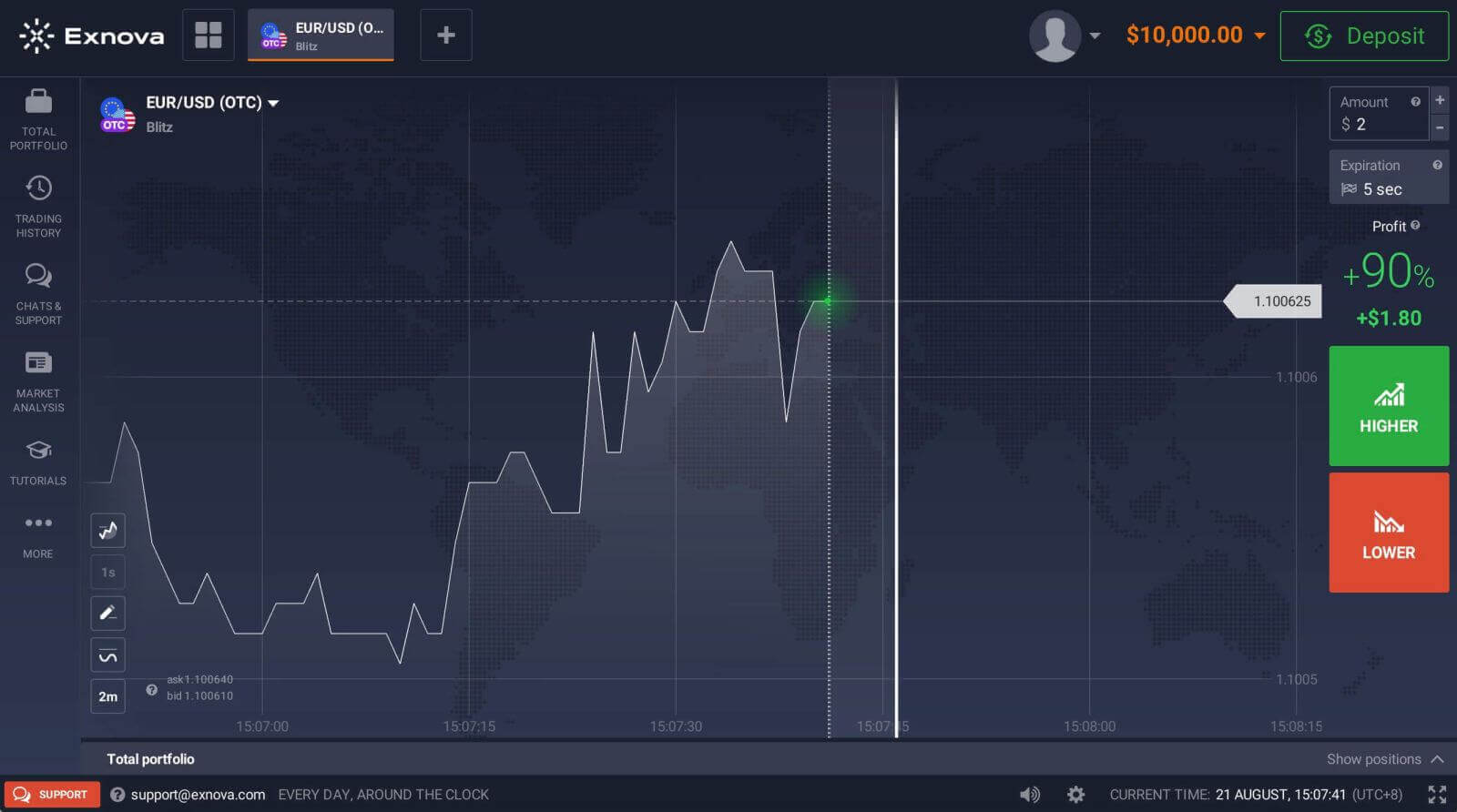
Now you are able to start trading. You have $10,000 in Demo Account, you can also trade on a real account after depositing.
How to Sign up on Exnova with an Email
1. You can sign up for an account on the platform by clicking the “Sign Up” button.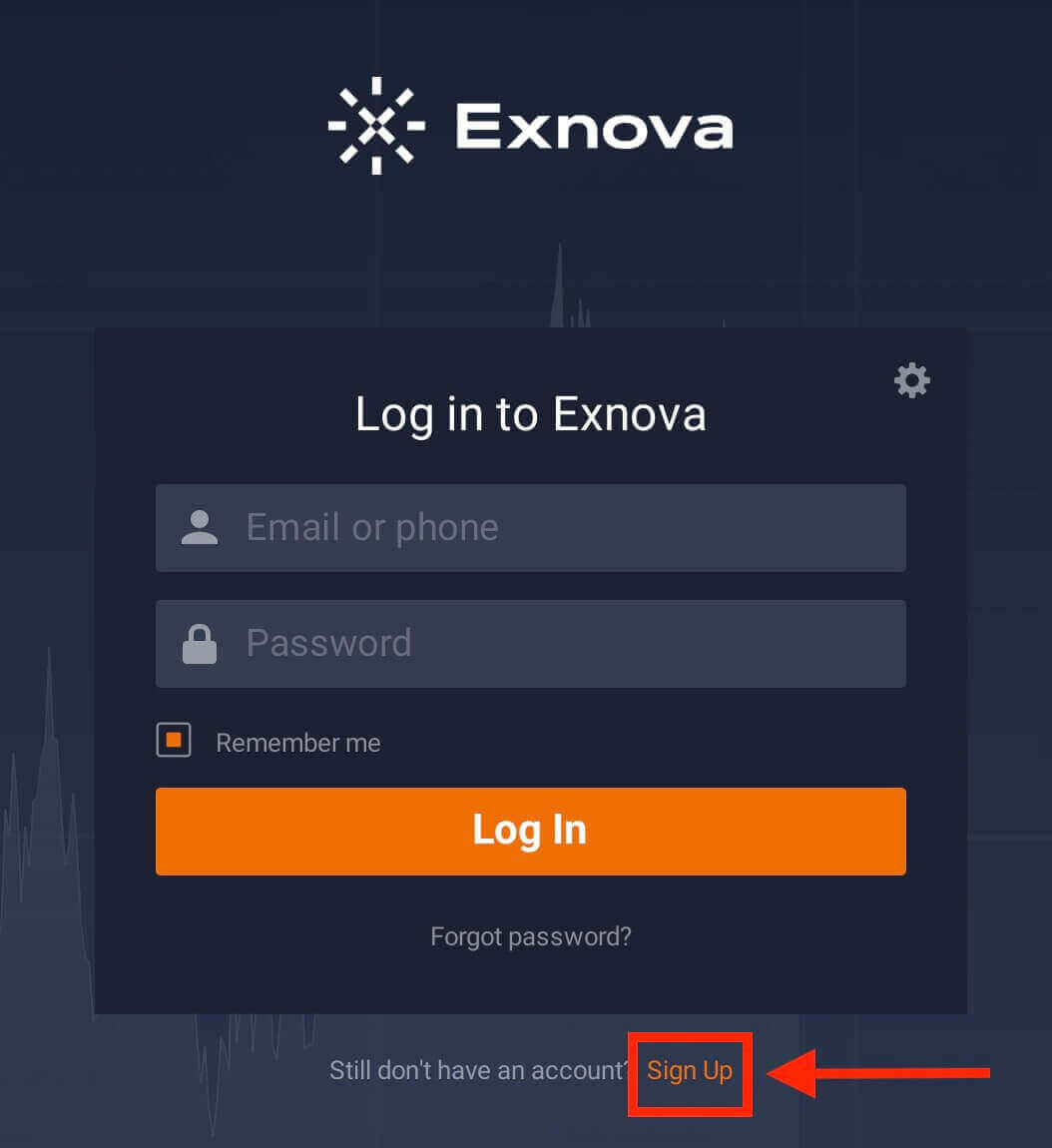
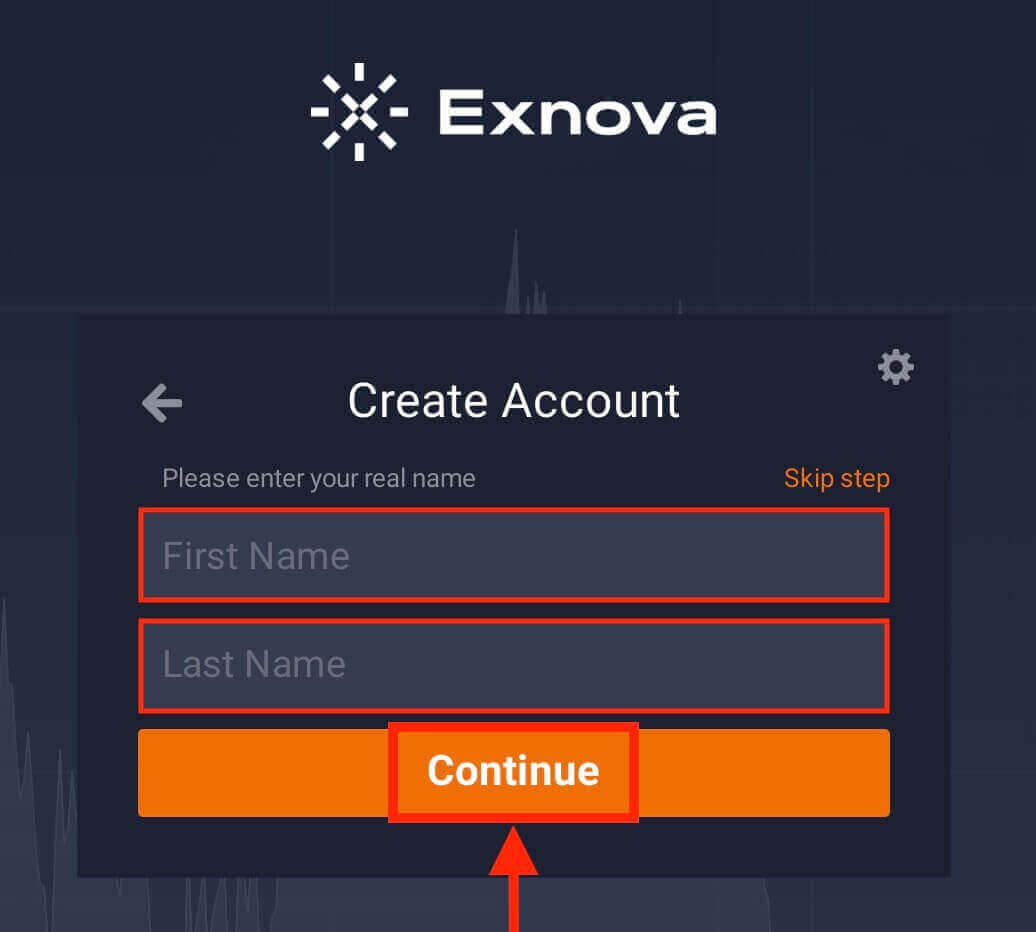
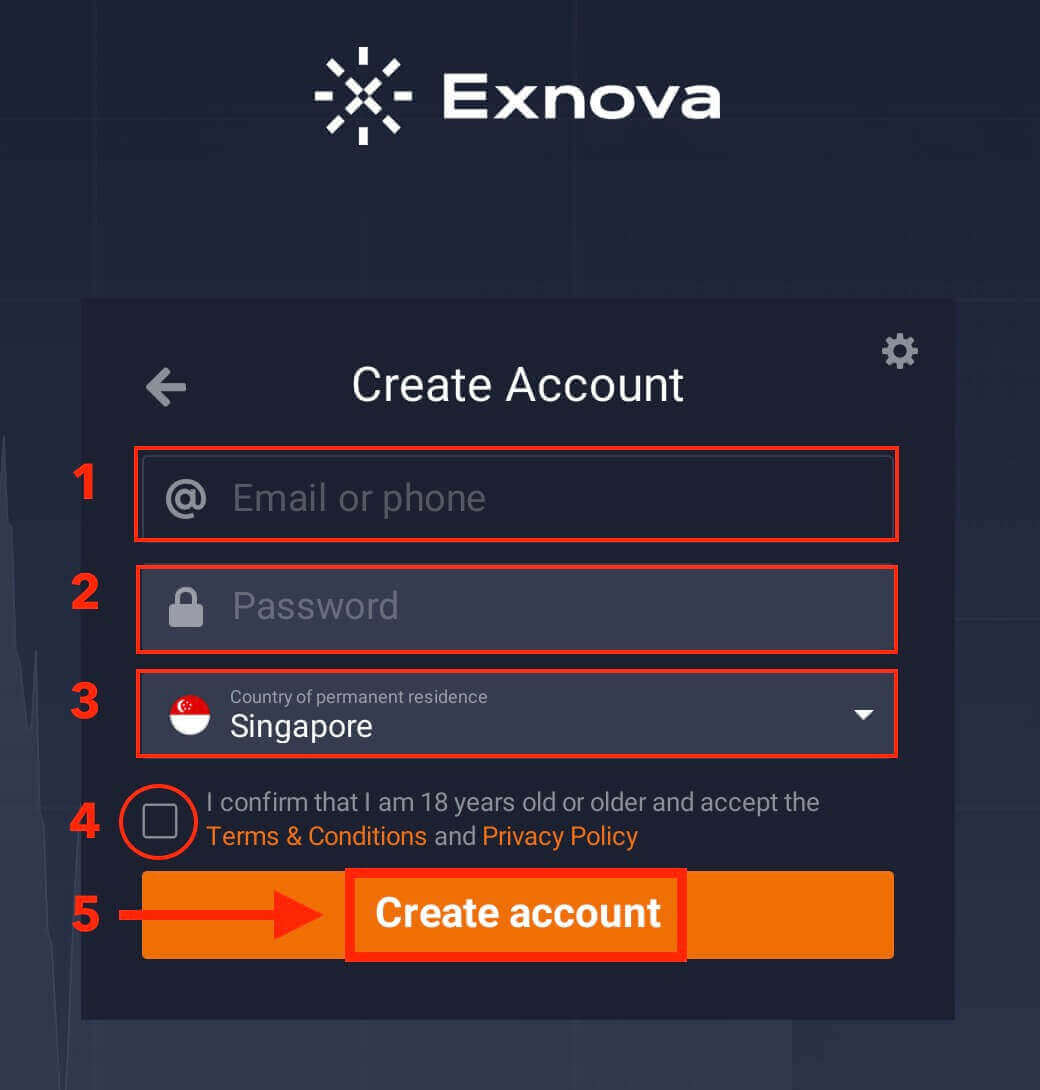
2. To sign-up you need to fill in all the necessary information:
- Enter your First name and Last name.
- Enter a valid email address.
- Create a strong password.
- Choose your country of permanent residence.
- Read "Terms Conditions" and check it.
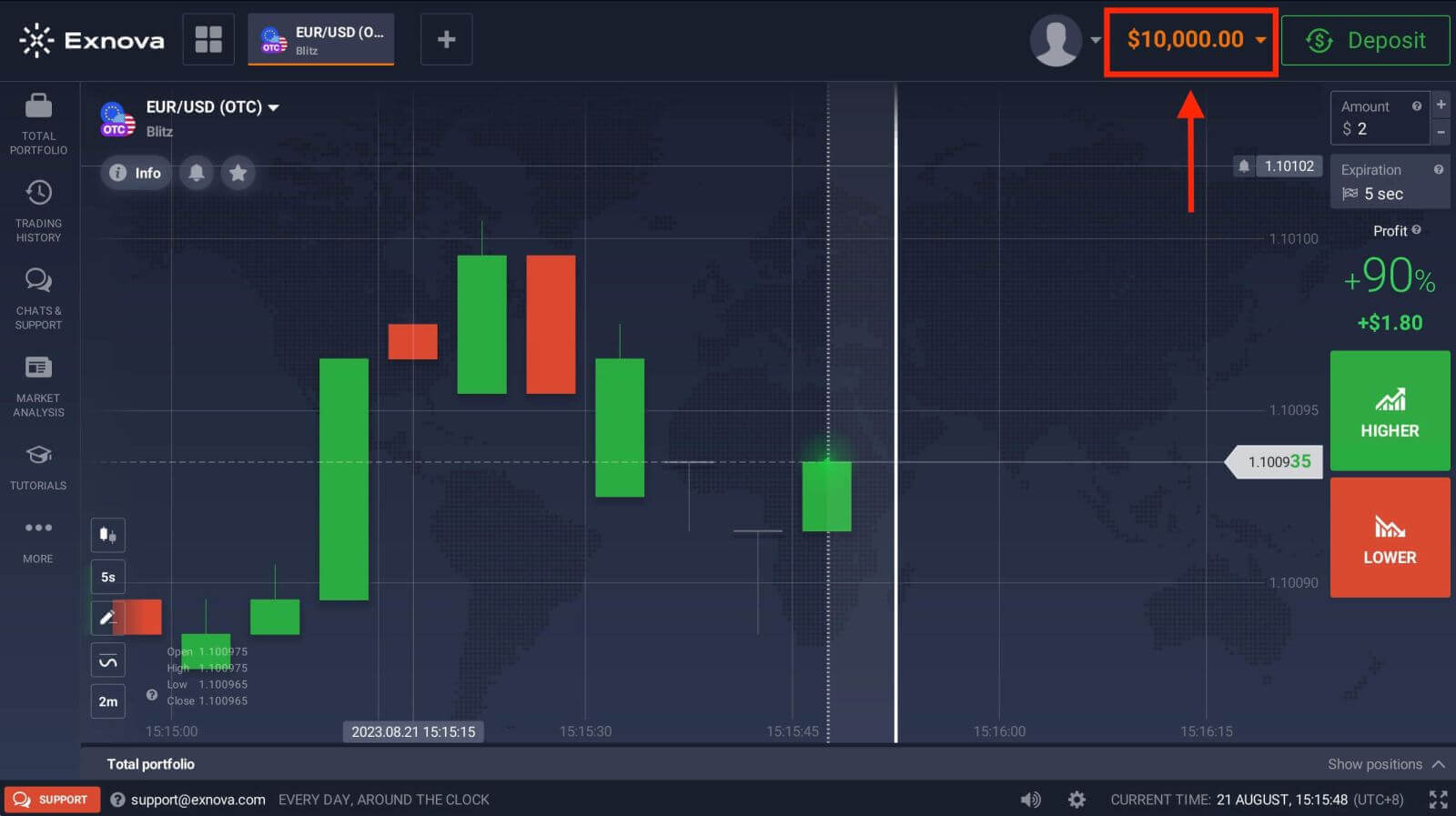
Congratulation! You have registered successfully. Now you are able to start trading. You have $10,000 in Demo Account. A demo account is a tool for you to get familiar with the platform, practice your trading skills on different assets and try out new mechanics on a real-time chart without risks.
How to Sign up on Exnova with a Google Account
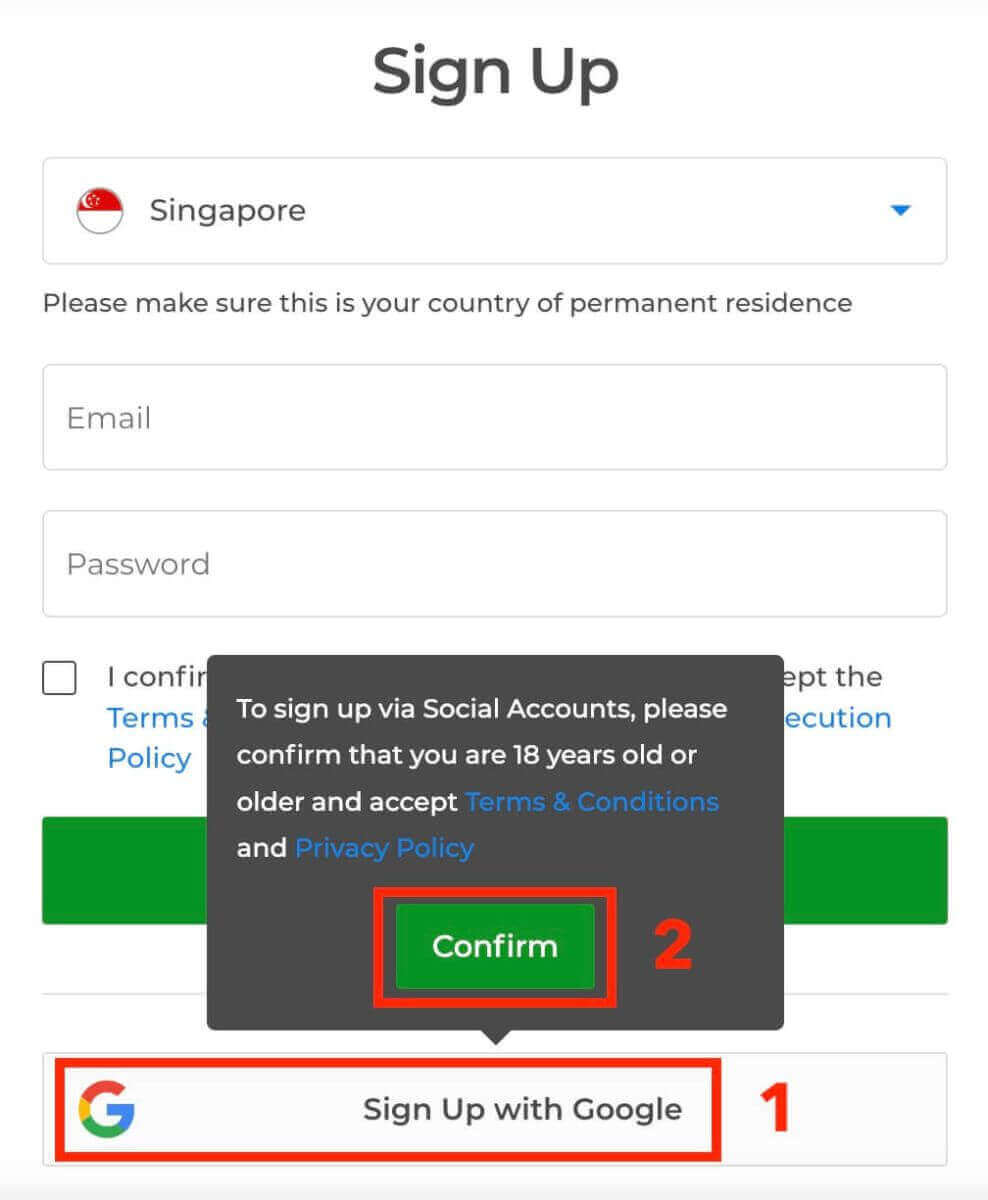
1. On the Exnova homepage, click the "Create an Account" button. This will direct you to the registration page, where you can initiate the account creation process.
2. To register, you need to authorize your Google account by clicking on the corresponding button in the registration form. Then, it will ask you that you are 18 years old or older and accept Terms Conditions, Privacy Policy and Order Execution Policy, click "Confirm".
3. You will be redirected to a Google sign-in page where you can enter your existing Google account credentials and click “Next”.
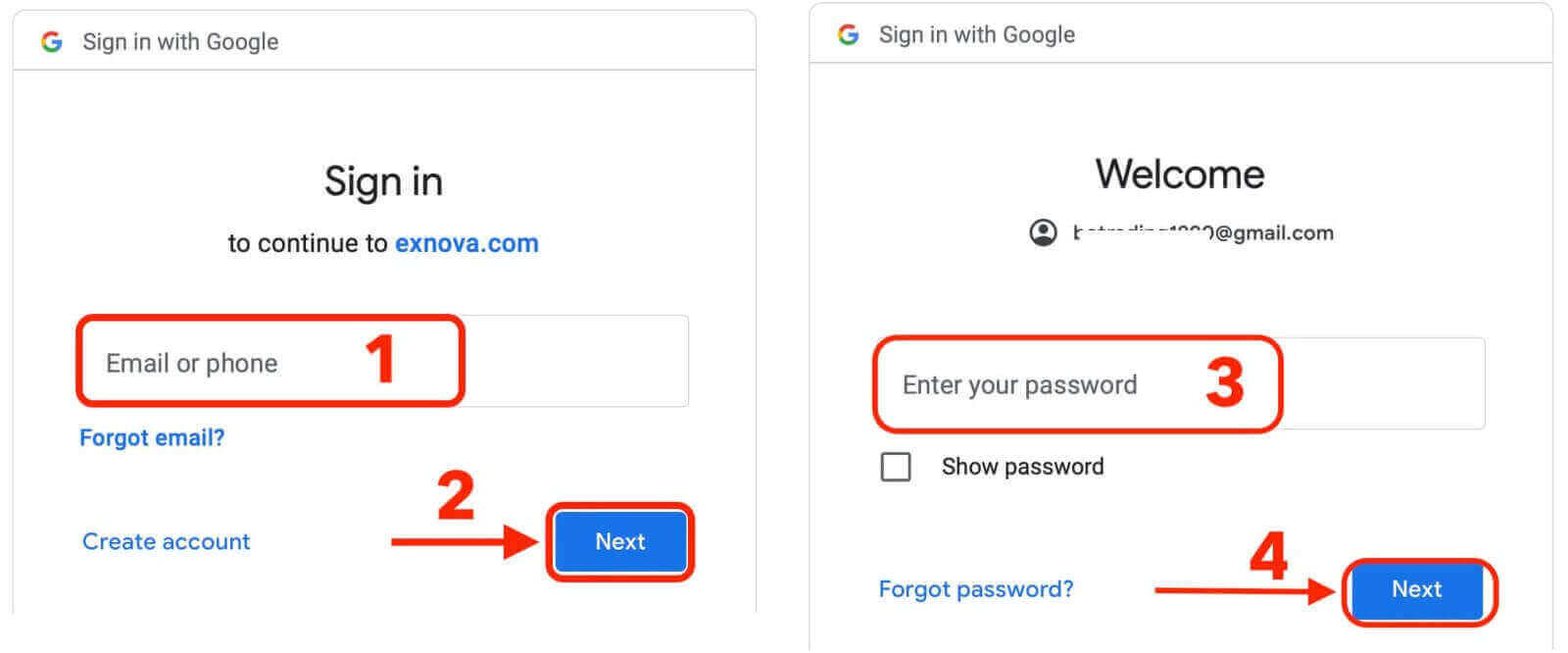
Congratulations! You have successfully registered with a Google account on Exnova. You will then be taken to your Exnova trading.
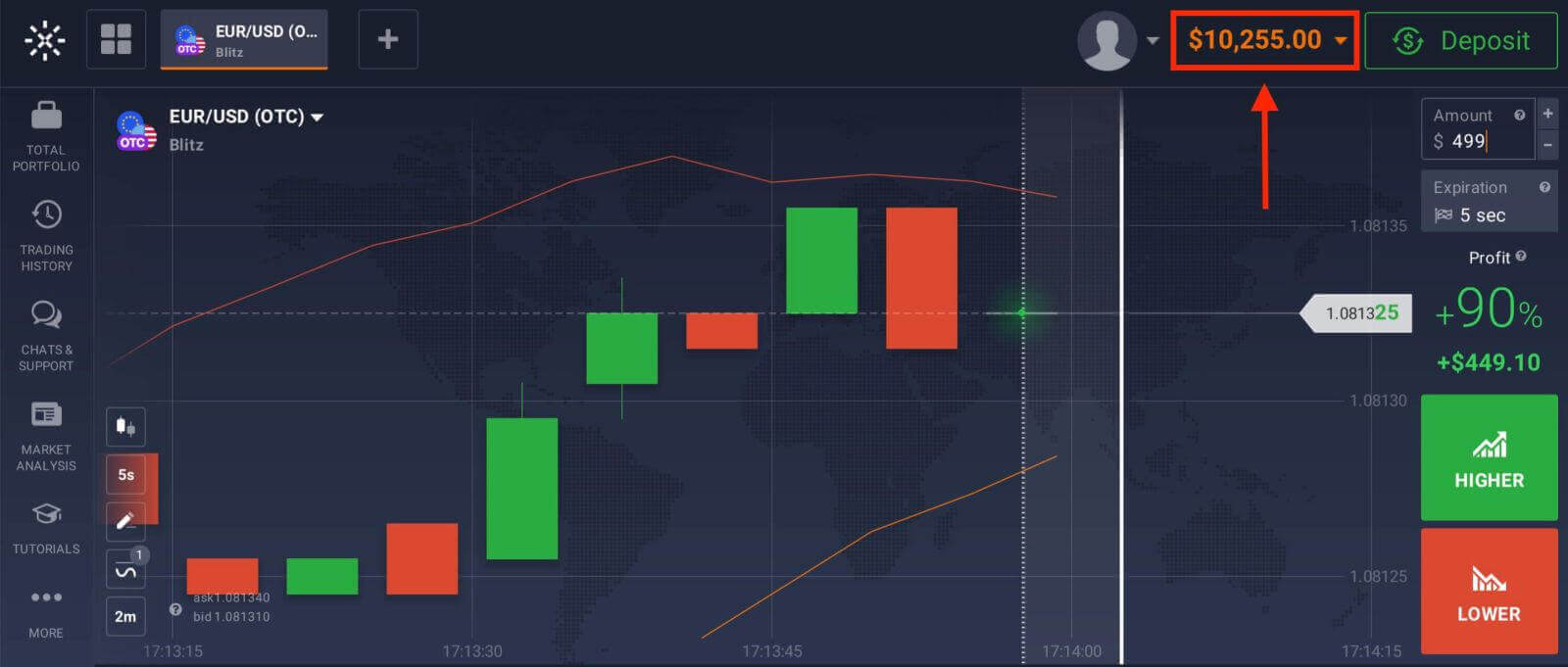
You can now enjoy the benefits of trading on one of the most advanced and user-friendly platforms in the market.
Conclusion: Seamless Experience - Easily Download and Install Exnova on Your Laptop/PC
With the successful execution of this guide, you have adeptly downloaded and installed the Exnova application on your laptop/PC. Embrace the comprehensive functionality of Exnova and unlock an enriched user experience across diverse platforms. FAQs
Download the Windows installer from Exnova’s official download page, choose the 64‑bit installer if available, then run the .exe as administrator. Follow the installer prompts, allow firewall/network permissions when requested, launch the app, sign in with your Exnova credentials, and enable two‑factor authentication if prompted. Restart if the installer requests it.
Windows: 64‑bit Windows 10 or newer, 4GB RAM minimum (8GB recommended), about 200MB free disk space and a stable internet connection. macOS: macOS 10.14 or later, 64‑bit, 4GB RAM and similar disk and network needs. Modern CPUs and updated drivers improve charting performance.
Common causes are an interrupted download, antivirus or firewall blocking, insufficient permissions, or a damaged installer. Re-download over a stable connection, run the installer as administrator, temporarily disable security software if safe, and ensure adequate disk space. On macOS check Gatekeeper settings to allow the app. If a checksum or signature error appears, delete the file and download again; capture any error codes and contact support if the issue persists.
Yes—use the same Exnova credentials to sign in to the desktop client. Accounts requiring verification or two‑factor authentication must complete those steps to enable full trading access. If web logins work but the app rejects credentials, clear cached data or reset your password via the web portal before retrying the desktop client.
Only download from Exnova’s official site and confirm the page uses HTTPS. On Windows check the installer’s digital signature and SmartScreen warnings; on macOS rely on Gatekeeper or notarization. Compare file size or checksum when published, avoid third‑party sources, and do not run emailed installers. Enable two‑factor authentication, keep your OS and security software updated, and contact support if anything looks suspicious.